
Integrating External Systems with SAP Risk and Compliance Management
For this integration scenario, we need an external system to connect with. Since we don’t have a pre-existing external system, we’ll create a Node.js application that simulates one by exposing an OData V4-compliant REST service. This application will act as our external data source throughout the integration.
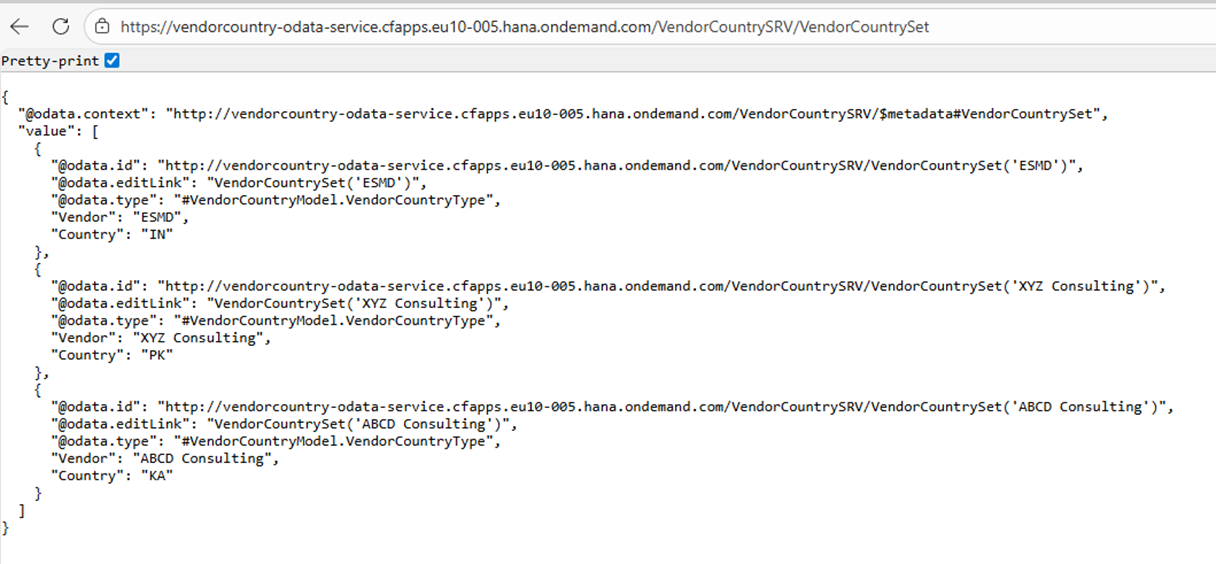
Start by developing a Node.js OData service that provides the data you want to expose to SAP RAM. Ensure it follows OData V4 standards for seamless compatibility with SAP’s ecosystem. In this example, the service provides vendor and country data through entities like VendorCountrySet.
Deploy your application to SAP Business Technology Platform as a Cloud Foundry application. This deployment makes your simulated external system accessible via a public URL, just like any real external system would be. Once deployed, thoroughly verify that your service endpoints are accessible and returning proper OData V4 responses—this validation step is crucial before moving forward with the integration.
Key Point: While we’re creating this service ourselves, from SAP RAM’s perspective, it’s treated as a completely external system. This approach is perfect for demonstrations, proof-of-concepts, or situations where you need to integrate data from a custom data source
Step 1: Develop and Deploy Your OData REST Service
For this integration scenario, we need an external system to connect with. Since we don’t have a pre-existing external system, we’ll create a Node.js application that simulates one by exposing an OData V4-compliant REST service. This application will act as our external data source throughout the integration.
Start by developing a Node.js OData service that provides the data you want to expose to SAP RAM. Ensure it follows OData V4 standards for seamless compatibility with SAP’s ecosystem. In this example, the service provides vendor and country data through entities like VendorCountrySet.
Deploy your application to SAP Business Technology Platform as a Cloud Foundry application. This deployment makes your simulated external system accessible via a public URL, just like any real external system would be. Once deployed, thoroughly verify that your service endpoints are accessible and returning proper OData V4 responses—this validation step is crucial before moving forward with the integration.
Key Point: While we’re creating this service ourselves, from SAP RAM’s perspective, it’s treated as a completely external system. This approach is perfect for demonstrations, proof-of-concepts, or situations where you need to integrate data from a custom data source.The foundation of any integration begins with a robust service layer. Start by creating a Node.js application that exposes an OData V4-compliant REST service. This ensures compatibility with SAP’s ecosystem and provides a standardized way to access your data

Deploy your application to SAP Business Technology Platform as a Cloud Foundry application. Once deployed, thoroughly verify that your service endpoints are accessible and returning proper OData V4 responses. This validation step is crucial before moving forward with the integration
Step 2: Configure Your External System Destination in BTP
With your service up and running, it’s time to establish connectivity. Navigate to your BTP Cockpit, select your subaccount, and go to Connectivity Destinations.
Create a new destination with the following configuration:
Name: Choose a unique identifier that clearly represents your external system
Type: HTTP
URL: The base URL of your deployed OData service
Proxy Type: Internet
Authentication: Configure based on your security requirements
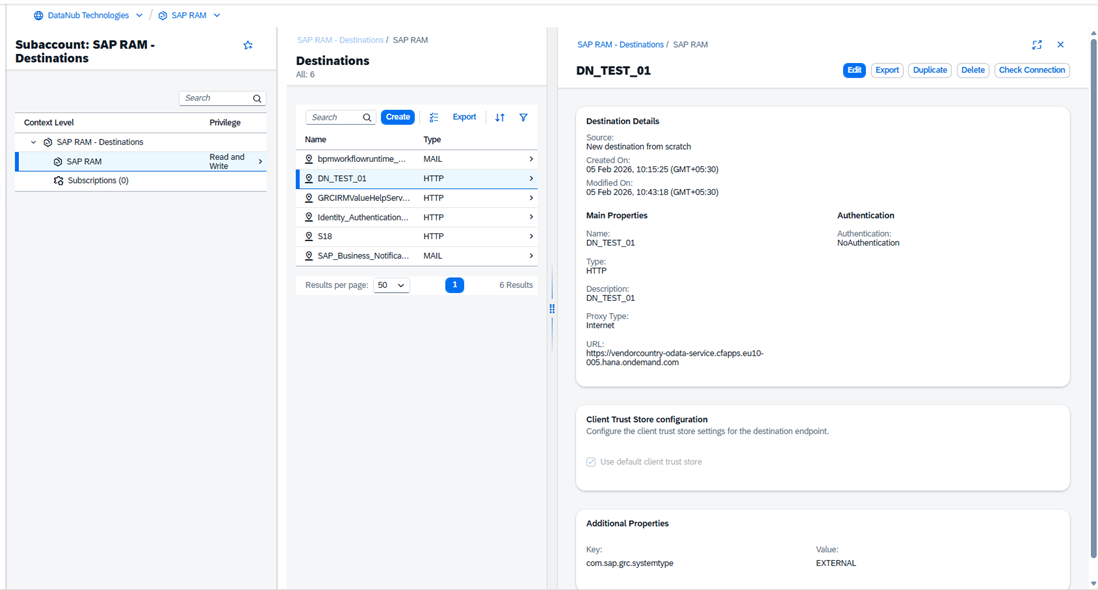
Don’t forget to add the critical additional property: com.sap.grc.systemtype = EXTERNAL. This flags the system as external for SAP RAM. Save your configuration and test the connection to ensure everything is working smoothly
Step 3: Create Your Automated Procedure in RAM
Now comes the exciting part—bringing automation into your risk management process. Log into your SAP Risk and Compliance Management application and navigate to Controls and Procedures Manage Automated Procedures

Click Create to define a new automated procedure. Provide a descriptive name that clearly indicates its purpose and set the System Type to “External system”. This is where your integration starts to take shape, transforming manual compliance checks into automated, real-time validations.
Step 4: Configure the External System Connection
Within your newly created automated procedure, navigate to the External System Configuration section. This is where you connect all the pieces.
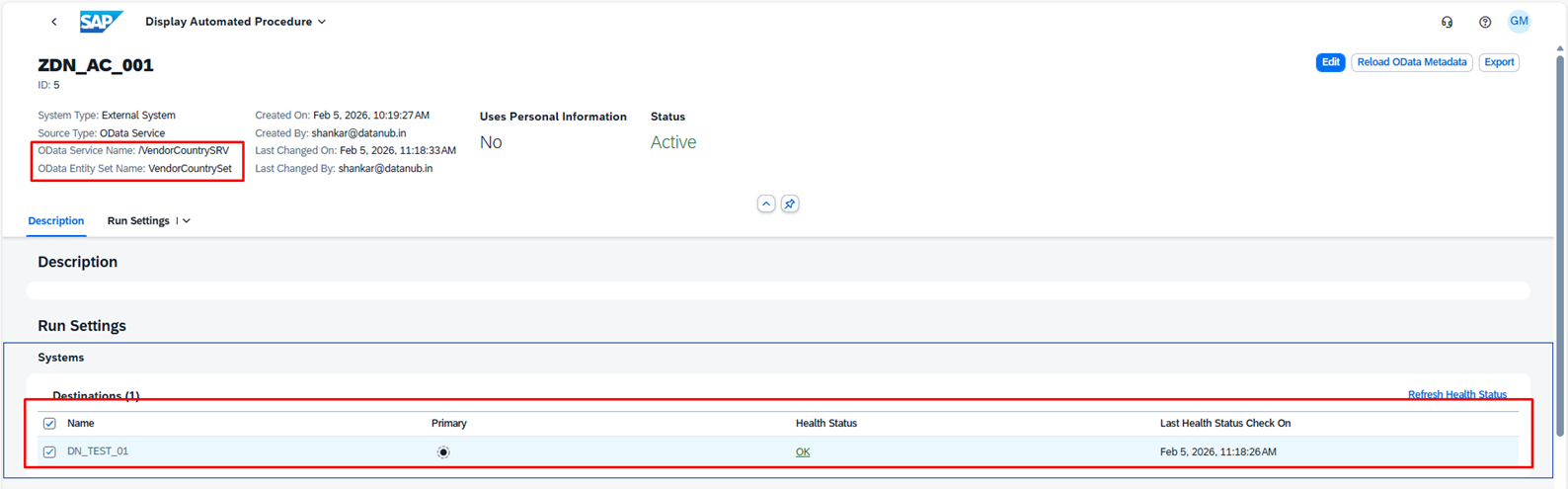
Select “Add System Destination” and choose the destination you created in Step 2. Then, specify the technical details:
OData Service Path: /VendorCountrySRV
OData Service Entity Set: VendorCountrySet
These paths tell RAM exactly where to find your data and how to communicate with your external system.
Step 5: Assign the Procedure to a Control
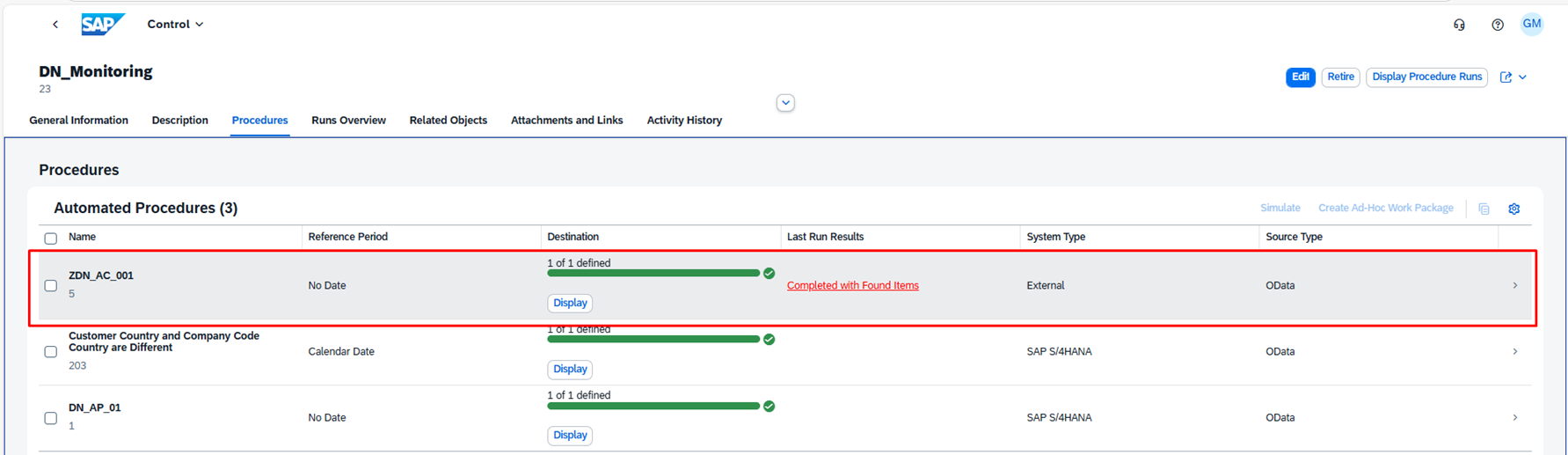
Integration without application is just configuration. Now it’s time to put your automated procedure to work. Navigate to the Controls section, select the relevant control that requires external data validation, and go to its Procedures tab.
Click “Add Procedure” and select the automated procedure you created in Step 3. This linkage ensures that when the control is evaluated, it will automatically fetch data from your external system
Step 6: Define Deficiency Parameters
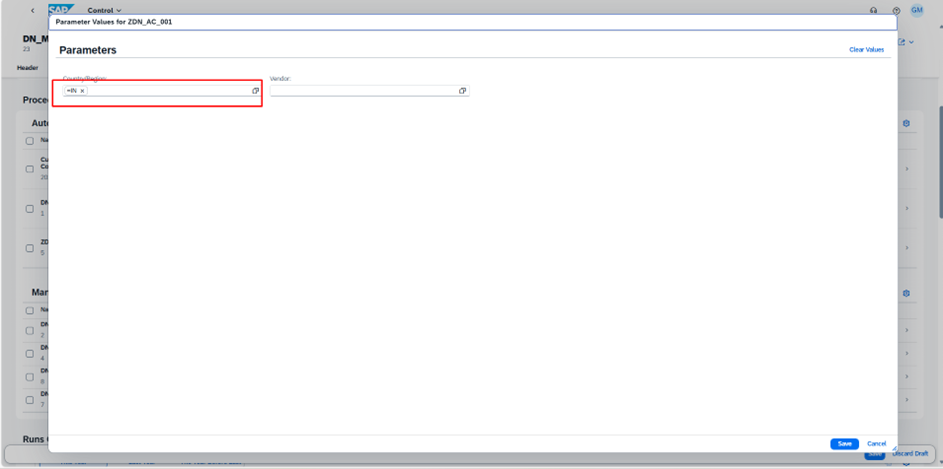
The power of automated compliance lies in its ability to flag issues automatically. Open your control, navigate to “Procedure Destination and parameters”, and set your deficiency detection criteria.
For example, you might set a parameter like “Country eq ‘IN'” to monitor vendors operating in India. These parameters act as your compliance watchdogs, constantly checking for conditions that might indicate a deficiency or risk.
Once configured, save and activate the control. Your automated risk monitoring is now live!
Step 7: Test, Validate, and Verify
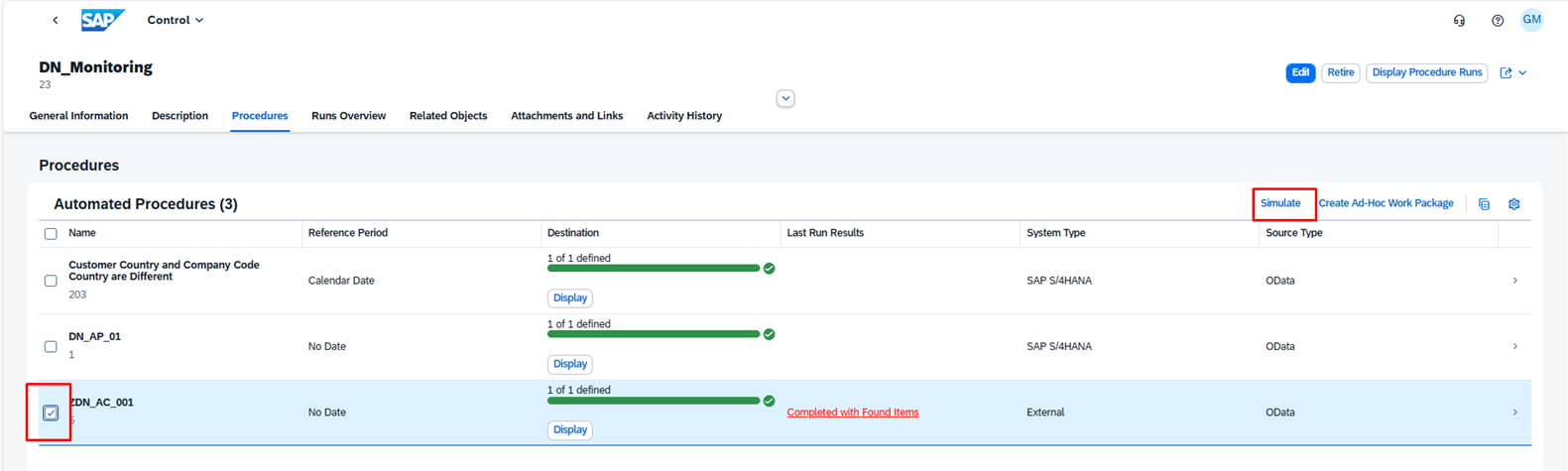
Never deploy without testing. Navigate to your control, select the automated procedure, and click “Simulate”. This is your moment of truth.
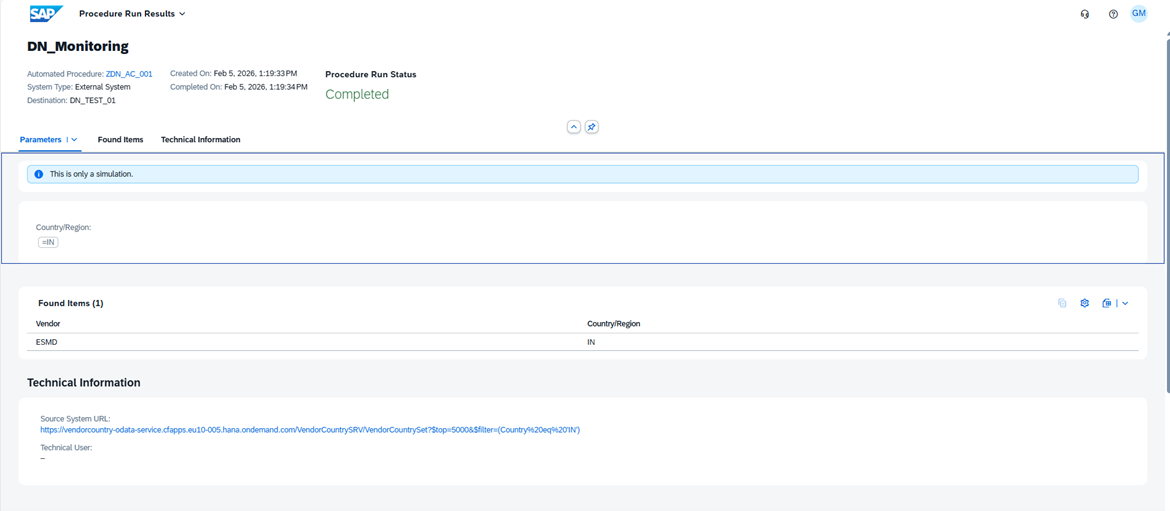
Review the simulation results carefully:
Is data correctly retrieved from the external system?
Does the deficiency detection logic work as expected?
Are the results accurate and meaningful?
Testing isn’t just a checkbox—it’s your assurance that the integration will perform reliably when it matters most.
Conclusion
Integrating external systems with SAP Risk and Assurance Management transforms how organizations monitor and manage risk. By following these seven steps, you’ve created a robust, automated pipeline that brings external data into your compliance framework seamlessly.
The beauty of this approach lies in its scalability. Once you’ve mastered this integration pattern, you can replicate it across multiple external systems, creating a comprehensive risk monitoring ecosystem that provides real-time visibility into your organization’s compliance posture.
Successful integration isn’t just about connecting systems—it’s about creating reliable, maintainable solutions that add genuine value to your risk management processes